

How to Update Your Profile on the New TigerNet
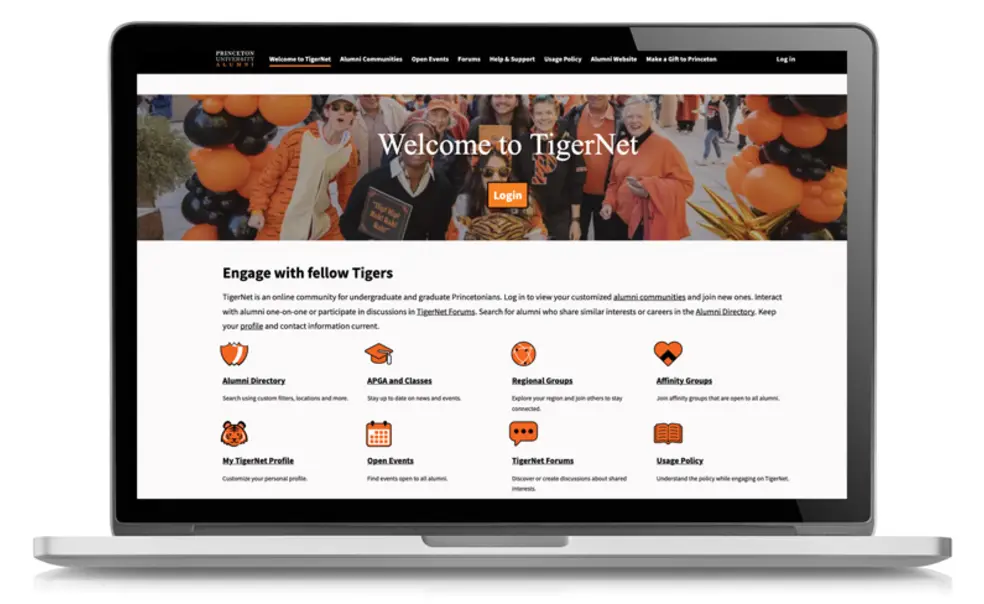

As the new TigerNet has been up and running for the past several months, some alumni have been asking about what they can — and cannot — see in the alumni directory. The Alumni Association has encouraged alumni to update their profiles and adjust privacy settings based on their preferences.
By default, the new directory keeps mailing addresses private, while displaying other contact information, such as email and phone number. Alumni can edit their TigerNet privacy preferences by clicking on their profile in the top right corner of their screen, selecting “My Settings” and then “Privacy.” Under this tab, users can check boxes to make different aspects of their profile private or visible to all users. This includes choosing whether they appear in the main directory, within their class year, or in any group or TigerNet forum they have joined.
Alumni can update their information in any section by clicking “Edit” in the upper right corner of the section. They can also hide their profile entirely by selecting “Hide my profile from other users.” When only this feature is selected, the profile will be searchable by users, but when clicked on, the profile will say “This profile is private” with a lock icon. If alumni also remove themselves from the main directory, their profile will no longer be searchable.
The Latest
See all


Related News

Princeton Teams Just Keep Winning. What’s Going On?
Tiger teams won 17 Ivy League championships in 2025-26, tying their own record set the year before

Ask Me About My Laptop Stickers
From clubs and departments to a favorite team, what you display says something about you

Former Princo Managing Director’s New Book Imparts Investing Lessons
Ted Karns’ new book is titled A Compounding Life

No responses yet